Table of Contents
Introduction
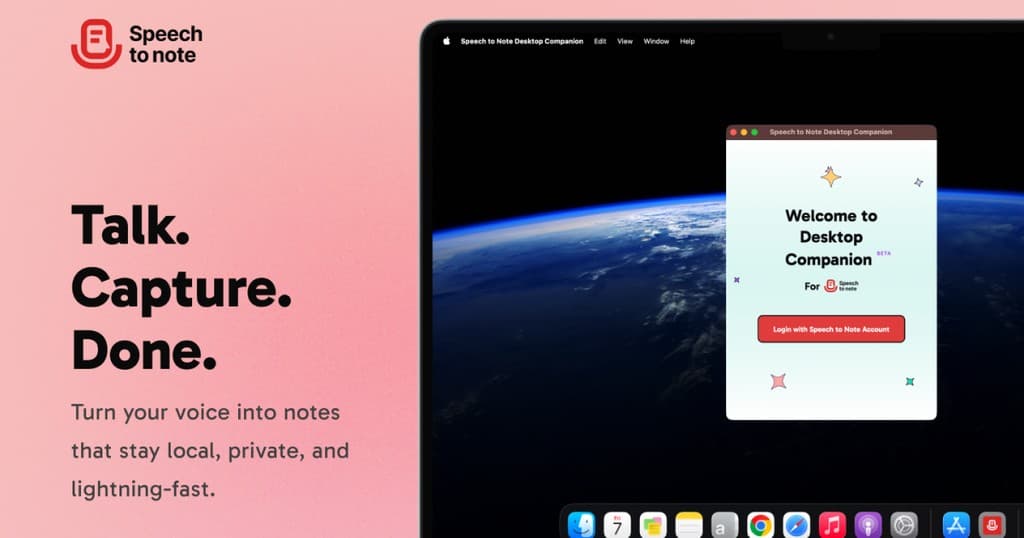
Voice-to-text technology is revolutionizing how we capture ideas and create content. The Speech to Note desktop companion application brings this powerful functionality directly to your Mac, enabling you to type with your voice from anywhere on your system. Whether you're drafting emails, creating documents, or jotting down quick notes, this application transforms your workflow.
In this comprehensive guide, we'll walk you through the entire installation and setup process, ensuring you can start recording and transcribing in minutes.
Getting Started: What You Need
Before beginning the Speech to Note installation process, ensure you have:
- A Mac computer (compatible with Intel and Apple Silicon chips)
- The Speech to Note DMG file downloaded
- Active internet connection for account login
- Approximately 5 minutes for complete setup
Step 1: Installing the DMG File
Download and Extract
The first step in installing the Speech to Note desktop application involves obtaining the DMG file. If you've received this from the community or via email, you're ready to proceed.
Installation Process:
- Open the downloaded DMG file on your Mac
- Locate the application icon in the installer window
- Drag the application icon to your Applications folder
- Wait for the copying process to complete
This straightforward drag-and-drop method ensures your application is properly installed in the system Applications folder, making it accessible from Spotlight and Launchpad.
Step 2: Resolving M1 Pro Chip Compatibility Issues
Troubleshooting Mac Errors
If you're using a Mac with an M1 Pro chip, you may encounter an error when launching the Speech to Note application for the first time. Don't worry—this is a known issue with a simple solution.
How to Fix M1 Pro Compatibility:
- Open Terminal on your Mac (search "Terminal" in Spotlight)
- Paste the following command provided by Speech to Note support
- Press Enter and wait for the process to complete
xattr -r -d com.apple.quarantine "/Applications/Speech to Note Desktop Companion.app"
After running this command, launch the application again. It should now open without errors and function smoothly on your M1 Pro Mac.
Step 3: Initial Setup and Permissions
Logging Into Your Account
Upon first launch, Speech to Note will guide you through account setup:
- Click "Continue" to proceed past the welcome screen
- Sign in with your Speech to Note credentials
- Allow the application to sync with your existing account
If you're already logged into Speech to Note in your browser, the application may automatically authenticate you.
Granting Necessary Permissions
The desktop companion application requires two critical permissions:
Notification Permissions
Notifications alert you when:
- Recording starts or stops
- Transcription is complete
- Format conversion is ready
We recommend keeping notifications enabled initially to track application activity. You can adjust notification style and frequency based on your preferences.
Microphone Access
As a voice recording application, Speech to Note requires microphone permissions. Grant microphone access to enable recording functionality across your Mac.
Step 4: Understanding Your Local Storage
How Notes Are Stored
An important distinction: the desktop companion application stores notes locally on your Mac, separate from your web account notes. This means:
- Only notes recorded through the desktop app appear here
- Web-version recordings won't sync to the desktop application
- Local storage keeps your recordings private and accessible offline
- Summaries created locally remain in desktop storage
This design prioritizes speed and privacy for power users who need instant voice-to-text functionality.
Step 5: Exploring the Application Interface
Main Features Overview
The Speech to Note desktop companion consists of three primary sections:
All Notes Page
Your central hub for recorded content. Here you'll find:
- Complete transcript of each recording
- Associated formatted versions
- Timestamps and metadata
- Quick access to all local recordings
Settings Page
Customize your experience by:
- Configuring keyboard shortcuts
- Accessing profile settings
- Changing summary models
- Managing notification preferences
Profile Settings
Click "Profile Settings" to access your web dashboard where you can:
- Change your preferred summary model
- Adjust default formatting options
- Manage account preferences
Step 6: Setting Up Keyboard Shortcuts
Master the Essential Hotkeys
Keyboard shortcuts are the key to maximizing your Speech to Note efficiency. Two shortcuts are fixed:
- Command + Option + R - Start recording
- Command + Option + S - Stop recording
Create Custom Format Shortcuts
The desktop companion provides 10 customizable shortcut keys for your favorite formats:
Example Configuration:
- Command + Option + 0: Casual Email
- Command + Option + 1: LinkedIn Post
- Command + Option + 2: Blog Article
- Command + Option + 3: To-Do List
- Command + Option + 4: Meeting Notes
- Command + Option + 5: Reddit Comment
To set up shortcuts:
- Navigate to the Settings section
- Click on "Keyboard Shortcuts" on top right of Settings Screen
- Assign your most-used formats to convenient key combinations
- Click "Save Changes"
Once saved, these shortcuts remain accessible whether the application window is open or closed.
Step 7: Recording Your First Note
Quick Recording Demonstration
Ready to start recording? Follow this simple process:
- Press Command + Option + R to begin recording
- Speak naturally into your microphone
- Watch the icon color change, indicating active recording
- Press Command + Option + S to stop
- Wait for transcription to complete (usually seconds)
Your transcription is automatically copied to your clipboard, ready to paste anywhere on your Mac.
Step 8: Applying Custom Formats
Transform Raw Transcription
The true power of Speech to Note lies in format conversion. After recording:
- Your raw transcript is captured
- Apply a custom format using your assigned shortcut
- Watch as Speech to Note restructures your content
Example: Creating a To-Do List
Record: "I need to work on creating an end-to-end demo of how Speech to Note works. Then I need to create a blog article. Finally, I need to publish everything on social media channels."
After applying list format: Speech to Note automatically structures this into:
- Work on end-to-end demo creation
- Create blog article
- Publish to social media channels
Step 9: Using Transcriptions Across Applications
Paste Anywhere on Your Mac
Once transcribed OR summarised, your content is ready for immediate use:
- Email applications - Draft professional emails quickly
- Document editors - Import transcripts into Google Docs or Word
- Note-taking apps - Paste into Apple Notes or Notion
- Communication tools - Add to Slack messages or Teams chat
- Web browsers - Paste into any online form
Simply use Command + V to paste your transcription or formatted content anywhere on your system.
Step 10: Accessing Your Recording History
Reviewing Past Notes
The desktop companion application maintains a comprehensive history:
- Open the "All Notes" section
- Browse all recordings chronologically
- View original transcripts
- Access all format variations
- Review timestamps
Key Difference from Web Version: Each transcript and format variation appears as a separate entry, allowing maximum flexibility for content repurposing.
Advanced Features and Tips
Access All Available Formats
Beyond your shortcut keys, you have access to:
- All pre-defined Speech to Note formats
- Custom formats created in your account
- Unlimited format applications to any recording
Keyboard Shortcut Benefits
The beauty of desktop shortcuts is their universal applicability:
- Work across all Mac applications
- Function whether Speech to Note window is visible
- Icon color changes indicate recording status
- No need to switch between applications
Offline Capability
Your desktop companion works independently:
- Record without internet connection
- Transcription occurs locally when possible
- Notes sync when connection resumes
Troubleshooting Common Issues
Application Won't Launch
- Run the M1 Pro compatibility command in Terminal
- Verify microphone permissions in System Preferences
- Restart the application
Microphone Not Detected
- Check System Preferences > Security & Privacy > Microphone
- Ensure Speech to Note is listed
- Toggle microphone access off and on
Transcription Quality
- Speak clearly and at moderate pace
- Minimize background noise
- Check microphone input levels in System Preferences
Best Practices for Maximum Productivity
Optimize Your Setup
- Choose Relevant Shortcuts - Assign formats you use daily
- Enable Notifications - Stay aware of recording status
- Review History - Learn from past recordings
- Test Formats - Experiment to find best models for your needs
- Update Regularly - Keep the application current
Common Use Cases
- Content creators - Draft blog posts and social media content
- Professionals - Capture meeting notes and action items
- Students - Record lectures and create study guides
- Executives - Dictate emails and memos
- Developers - Document code and create README files
Conclusion
The Speech to Note desktop companion application transforms how you interact with your Mac. By following this setup guide, you've unlocked a powerful voice-to-text tool that works seamlessly across all applications.
Start with the basic recording and expand into custom formats as you grow comfortable with the platform. Your Mac is now equipped with professional-grade voice transcription technology.
Ready to revolutionize your productivity? Install the Speech to Note desktop companion today and experience the freedom of dictation-powered creativity.